
Step 1 - Allow Scripts on new Site - Permissions Required - SharePoint Tenant Admin
- Go to SharePoint Admin > Active Sites
- Click on the site name Intranet, then click Edit
3. Under Custom Scripts, Click Edit - Click Allowed and Save
- Click Confirm when it prompts you to Allow users to add custom scripts
This has been done today, but you'll have to do it everytime you want to edit the content on the site
Step 2 - Add Redirect URI in Azure - Permissions Required - Global Azure Admin
Secondly, in order for Sparrow web parts to work on that site, can we please add a new redirect URI for this site in the Sparrow SharePoint SSO app registration?
Instructions are as follows
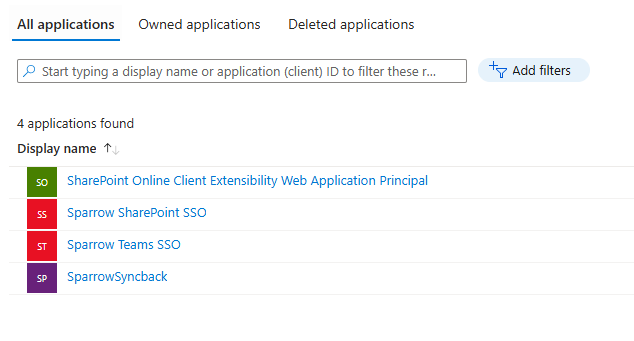
- Navigate to App Registrations
- Under All Applications, find the app registration called Sparrow SharePoint SSO (or something like it)
- Once you find the app registration, click on it, then click on Redirect URIs

- From there, click on Can you please add the new url for the communications site.Once you have added each site, please hit Save at the bottom
Step 3 - Add the App to SharePoint - Permissions Required - Site Collection Admin
- While on the new site, click the gear in the top right corner and click Add an App
- You'll be redirected to My Apps. Here, click Add next to Sparrow Intranet Modern
Step 4 - Configure App Properties - Permissions Required - Site Collection Admin
- Visit a page that already has Sparrow installed
- Add the Configuration properties web part to the page and click Save. You'll see something like this
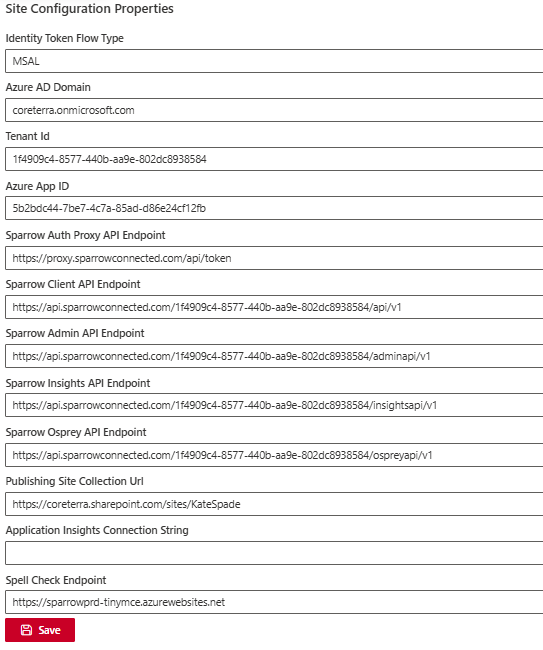
- You'll then want to open a page on your new site, add the Configuration properties web part again and copy over all the values (from your working Sparrow site, not the above example)
- Once you've added the values, click Save. You'll then receive a message confirming changes have been saved
Once saved, you can delete the Configuration properties web part from the page