![Sparrow Logo only-1.png]](https://support.sparrowconnected.com/hs-fs/hubfs/Sparrow%20Logo%20only-1.png?height=40&name=Sparrow%20Logo%20only-1.png)
- Draft the content (post/event) that you want to save as a template
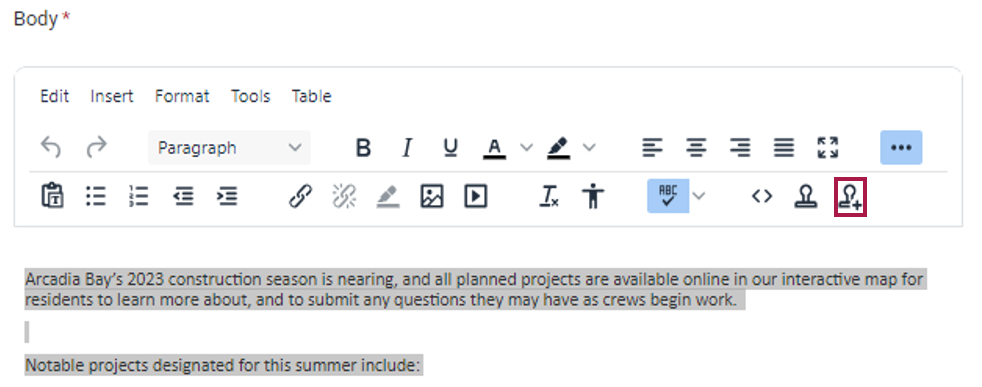
- Select the content in the Body field.
- Once the content is selected, click the Save as Template icon. Note that this icon remains disabled until content is selected
- In the New Template dialogue box, enter a Template Name and assign it to a Category. If you need to create a new Category, refer to the article on Creating a New Category for Content Templates
- Click Save
- The newly created template is now available for use. To learn more about how to use the template, refer to the article on Inserting Content Templates.