![Sparrow Logo only-1.png]](https://support.sparrowconnected.com/hs-fs/hubfs/Sparrow%20Logo%20only-1.png?height=40&name=Sparrow%20Logo%20only-1.png)
Currently supported web browsers on iOS:
- Google Chrome
- Firefox
- Opera Browser
- Safari
Enable Web Parts on Safari
1. Navigate to Safari settings
2. Turn off 'Block popups'
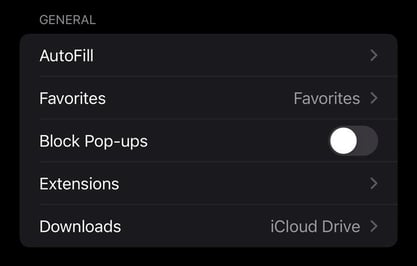
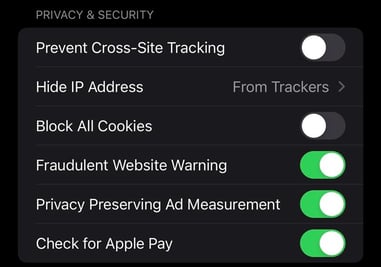
3. Ensure 'Prevent Cross-Site Tracking' need to be disabled as well, you can find this under 'Privacy & Security'
Enable Web Parts on Google Chrome
There are two steps required to enable web parts on Chrome browsers:
- Enable Popups on Google Chrome
- Open your Chrome Browser
- Click 3 little dots then go to Settings.
- Tap 'Content Settings'
- Turn 'Block Pop-ups' off.
.png?width=387&name=iOS%20General%20Settings%20(2).png)
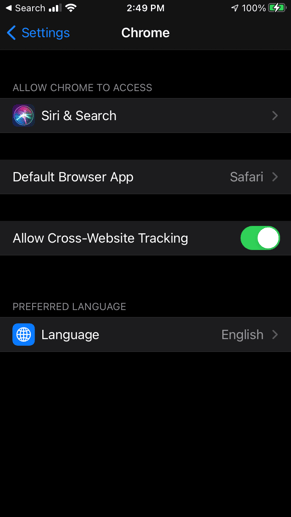
- Enable Cross-website tracking
- Go to your iPhone or iPad settings screen
- Scroll down until you find the chrome app
- Turn on - "Allow Cross-Website Tracking"
Enable Web Parts on Opera
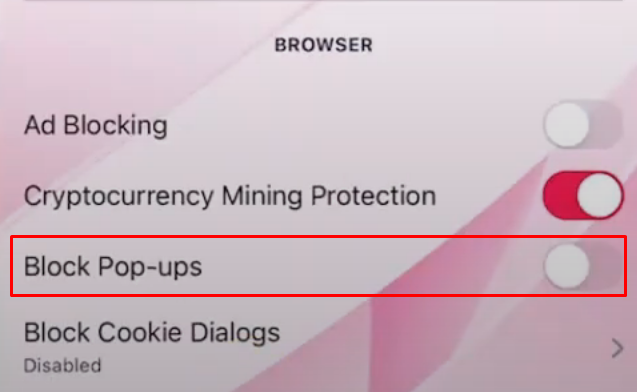
1. Click the little Opera Icon on the bottom right
2. Then click 'Settings'
3. Ensure 'Block Pop-ups' is disabled.
Enable Web Parts on Firefox
1. Tap the button on the top right corner.
2. Click the gear icon
3. Turn off 'Block Pop-up Windows'.