![Sparrow Logo only-1.png]](https://support.sparrowconnected.com/hs-fs/hubfs/Sparrow%20Logo%20only-1.png?height=40&name=Sparrow%20Logo%20only-1.png)
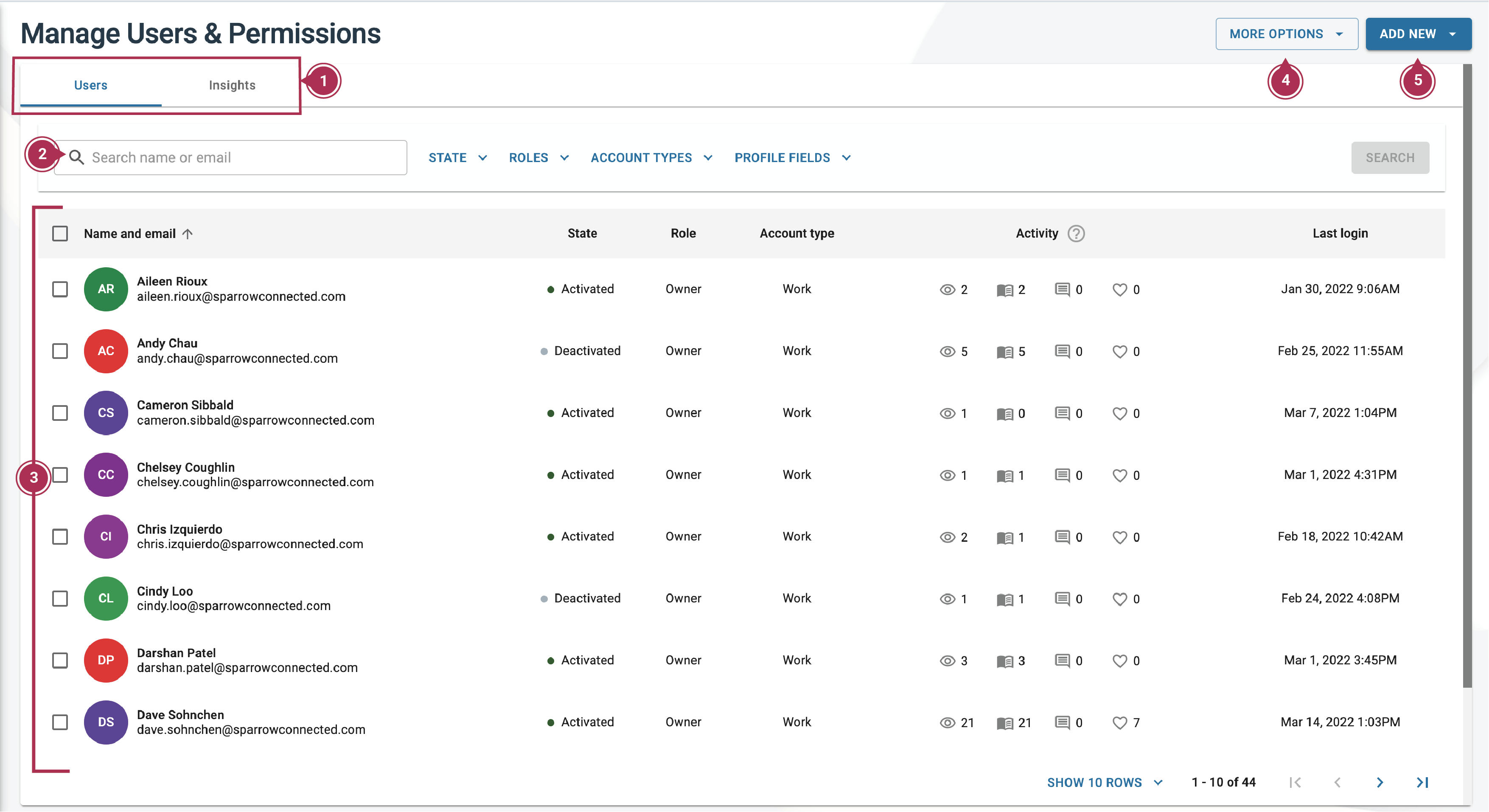
- Users and Insights Tabs. These help you switch your view between the User list and the User Insights. Learn more about User Insights here.
- Search bar and filter. You can search users by name or email address, or filter them by state (activated or deactivated), role, or account types.
- User List. Your users are listed down in alphabetical order (A-Z) by default. This list gives you quick helpful facts about your users.
- Name and email. Displays the user's first name, last name, and email address.
- State. Helps you identify whether or not the user currently has access to your portals and apps.
- Activated. Users who currently have access to your portals and apps.
- Deactivated. Deactivating accounts revokes the users' access to your organization's Sparrow app, portals and/or intranet.
Read the instructions below on how to deactivate and activate users.
- Role. Shows you which role is assigned to a user. Read more about roles.
- Account type. Shows you which account type (Work, Social, or Sparrow) the user is registered with. Read more about account types.
- Activity. displays the total Views, Reads, Comments and Reactions of each user.
- Last login. Most recent user login, please note that the user could have use any Sparrow channel available to your organization (SharePoint Intranet, MS Teams, Mobile App, Web Portals, etc.).
- More Options. Scroll down or click on the following to learn more helpful tools in Users & Permissions.
- Add New User button. Choose this button to add more users to your directory. Here's a step-by-step guide on creating/adding new users.